
How to set up zapier for MCP integration
What is Zapier?
Zapier is an automation platform that connects applications and services without requiring custom integrations for each one. At a high level, Zapier allows you to trigger actions in one application based on events in another, automate repetitive workflows across different tools, and interact with SaaS products through standardized actions, enabling integrations without writing custom backend logic for each connection.
Zapier supports thousands of applications, including email, calendars, spreadsheets, project management tools, databases, and collaboration platforms. Instead of writing and maintaining individual API integrations, developers and teams can rely on Zapier’s pre-built connectors.
In the context of AI systems, Zapier acts as a universal action layer. Rather than teaching an agent how to speak to Gmail, Google Sheets, Notion, and Slack individually, you expose those capabilities through a single, consistent interface.
What is MCP, in practical terms?
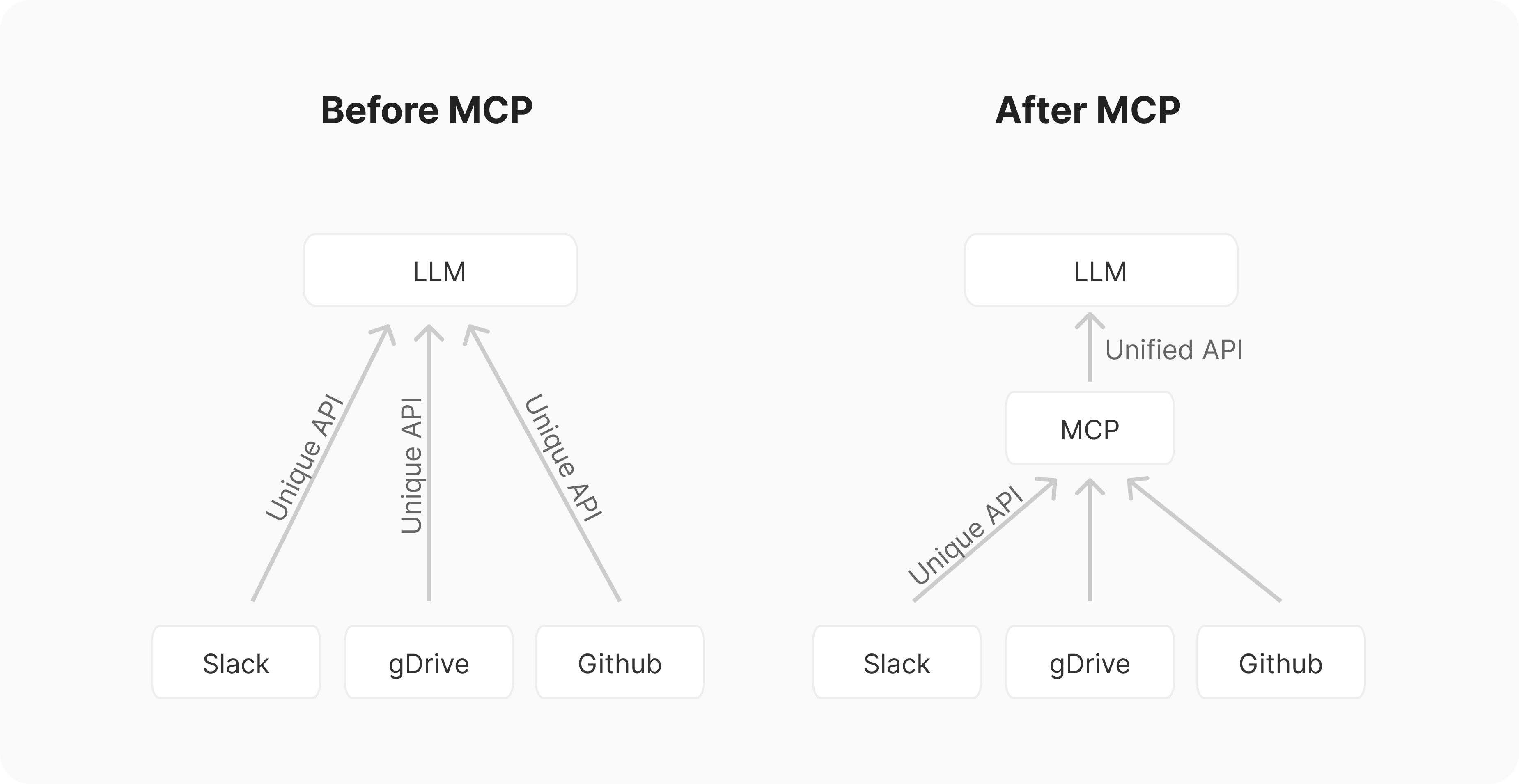
Model Context Protocol Before vs. After
MCP (Model Context Protocol) is a standard that allows AI systems to interact with external tools in a structured, discoverable, and controlled way. It separates responsibilities into two roles:
- MCP server: exposes tools and actions
- MCP client: connects to the server and invokes those tools
Instead of hardcoding tool logic directly into an application, MCP enables an AI system to dynamically discover and query its environment by asking what tools are available, what actions those tools can perform, and what inputs or parameters they require, making integrations more flexible and extensible. This makes tool usage more dynamic, modular, and easier to evolve over time.
MCP clients and MCP servers
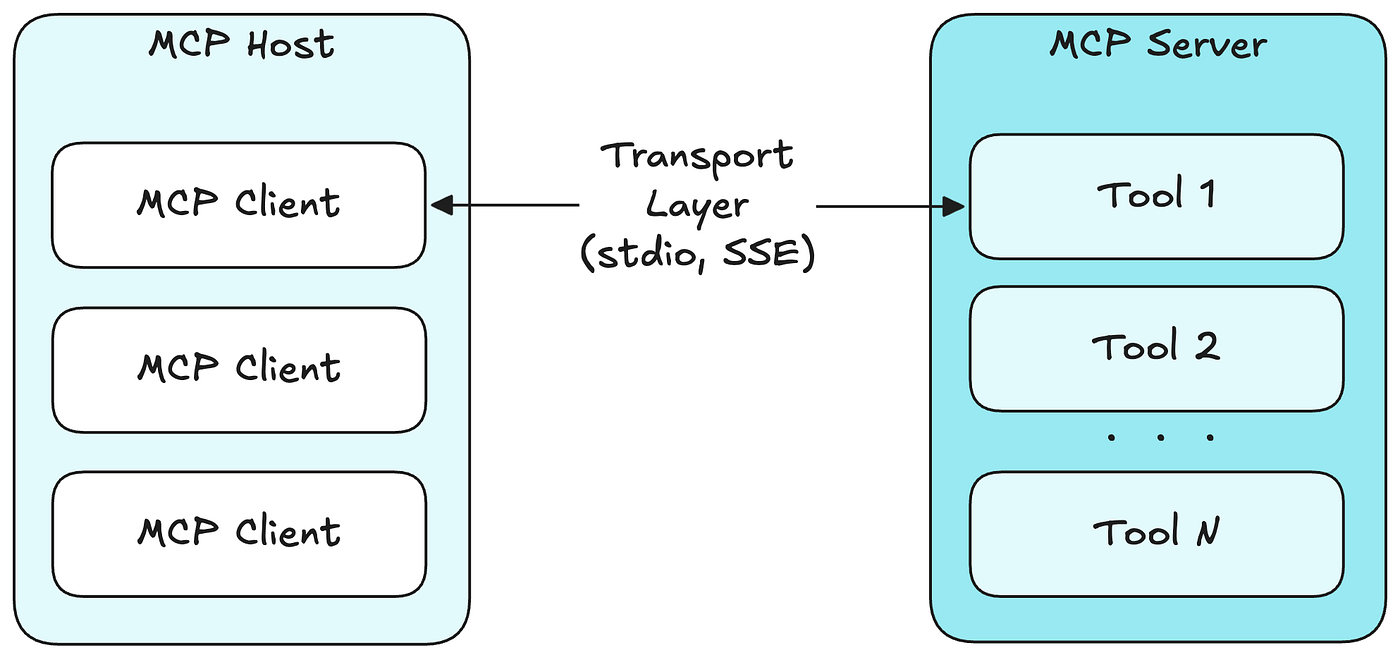
An MCP server is responsible for defining and exposing capabilities. In this setup, Zapier acts as the MCP server by exposing actions like “send email,” “create spreadsheet row,” or “create calendar event.”
An MCP client is the application that connects to an MCP server and invokes the tools it exposes. This client can take many forms, including Python applications, AI chatbots, developer tools, or IDE integrations—any system that needs to discover, call, and coordinate external capabilities through a standardized interface.
Zapier currently supports multiple MCP clients, such as:
- Claude (Claude Code)
- ChatGPT
- Cursor
- Custom Python-based agents
In this guide, we use a Python MCP client, but the Zapier-side setup is largely the same regardless of which client you use. The key idea is that the MCP server (Zapier) remains stable, while clients can change.
Setting up Zapier for MCP integration (step-by-step tutorial)
With the conceptual foundation in place, we can move into the practical setup. In this section, you will create a Zapier MCP server, configure authentication, and add tools that can be used by an MCP-compatible client. The goal is to create a reusable, general-purpose MCP server that can support a wide range of automations through Zapier.
Prerequisites
Before you begin, make sure you have:
A Zapier account (a free plan is sufficient to get started). You can sign up on Zapier.
Step 1: create an MCP server in Zapier
1. Open the Zapier MCP portal
Navigate to Zapier MCP.
Sign in using your Zapier account credentials. This portal is where all MCP-related configuration happens.
2. Create a new MCP server
From the MCP dashboard:
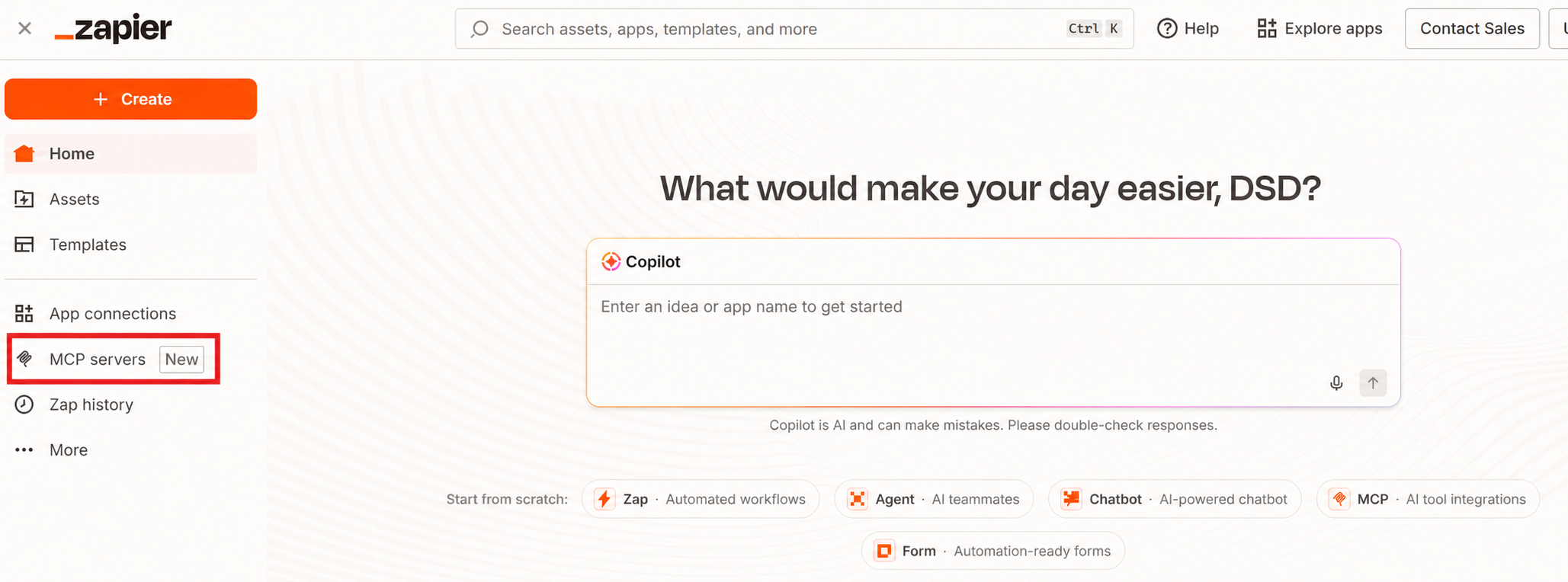
Click + New MCP Server to begin creating a new MCP server that will expose Zapier actions to external AI clients.
For MCP Client, select Other, which is the option for custom or unlisted clients—such as Python-based agents and applications—and determines the connection examples shown by Zapier.
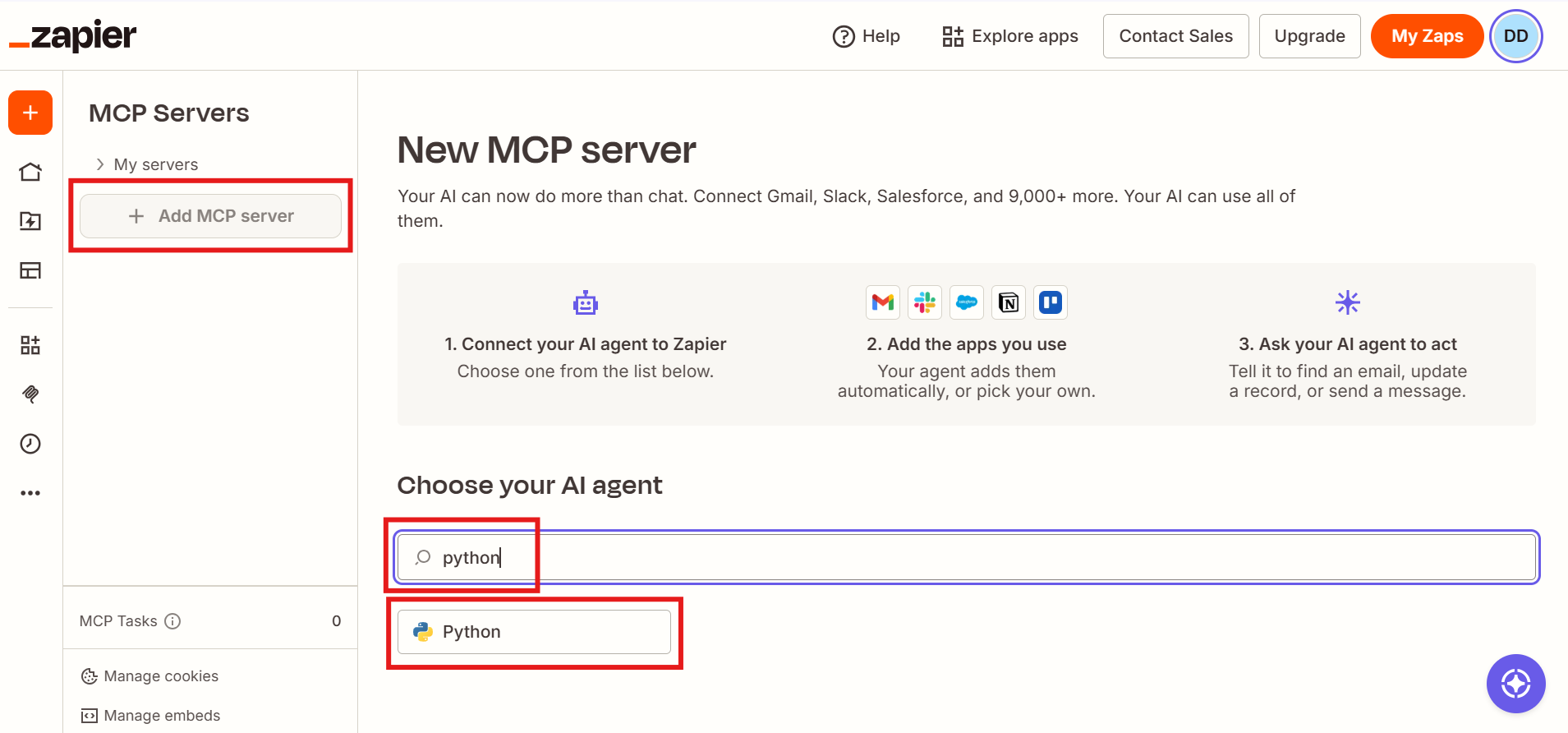
Once these options are selected, Zapier creates the MCP server and redirects you to its configuration page, where you can generate credentials, add tools, and manage how MCP clients connect and authenticate.
3. Add tools
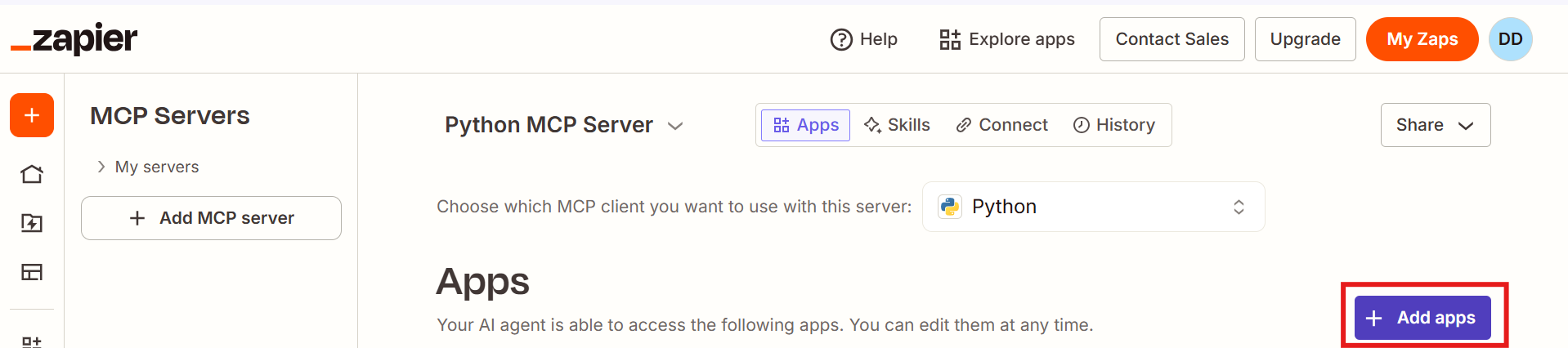
Go to the Apps tab:
- Click the “+ Add apps” button on your server dashboard
- You’ll see the “Add tools” dialog with “Apps”
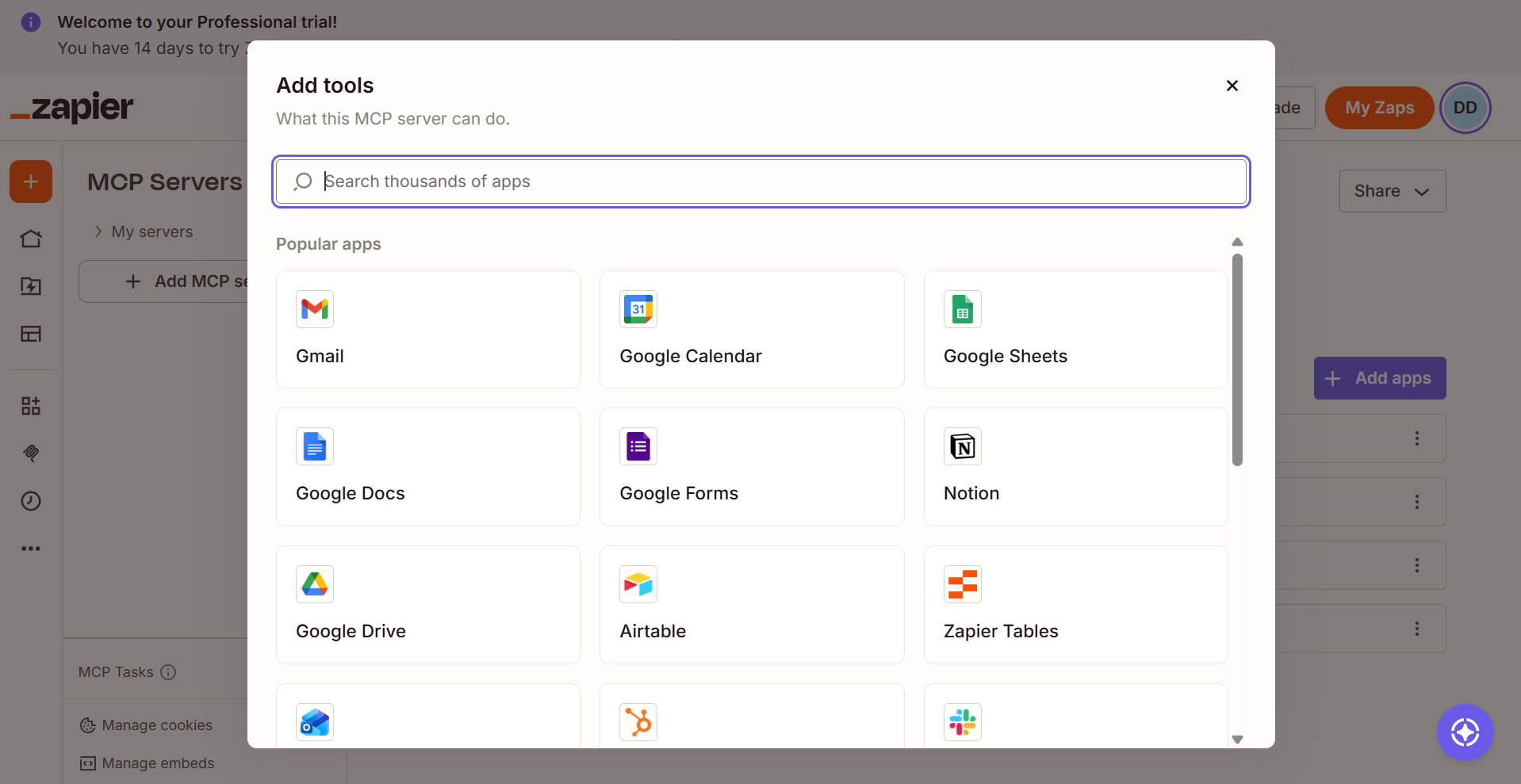
Choose an app:
- Search method: Use the “Search thousands of apps” search bar
-
Browse method: Select from “Popular apps”, including:
- Gmail – email automation
- Google Calendar – schedule management
- Google Sheets – spreadsheet operations
- Notion – notes and databases
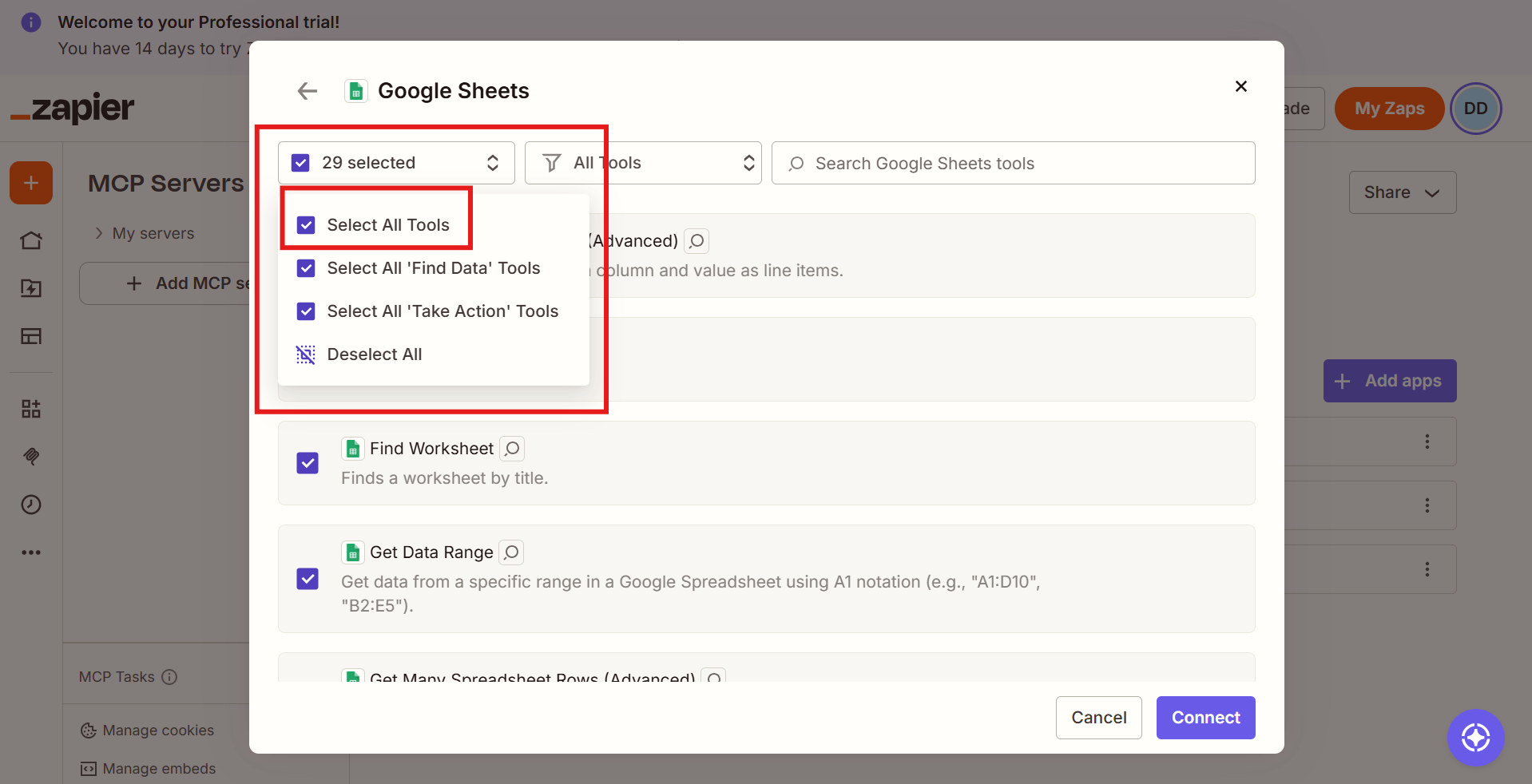
After clicking an app (e.g., Google Sheets), select tools – Select All Tools, Select All “Find data” Tools, or Select All “Take action” Tools:
- Bulk option: “Add all [App] tools” (recommended for beginners)
- Individual actions: like “Lookup Spreadsheet Rows (Advanced)”
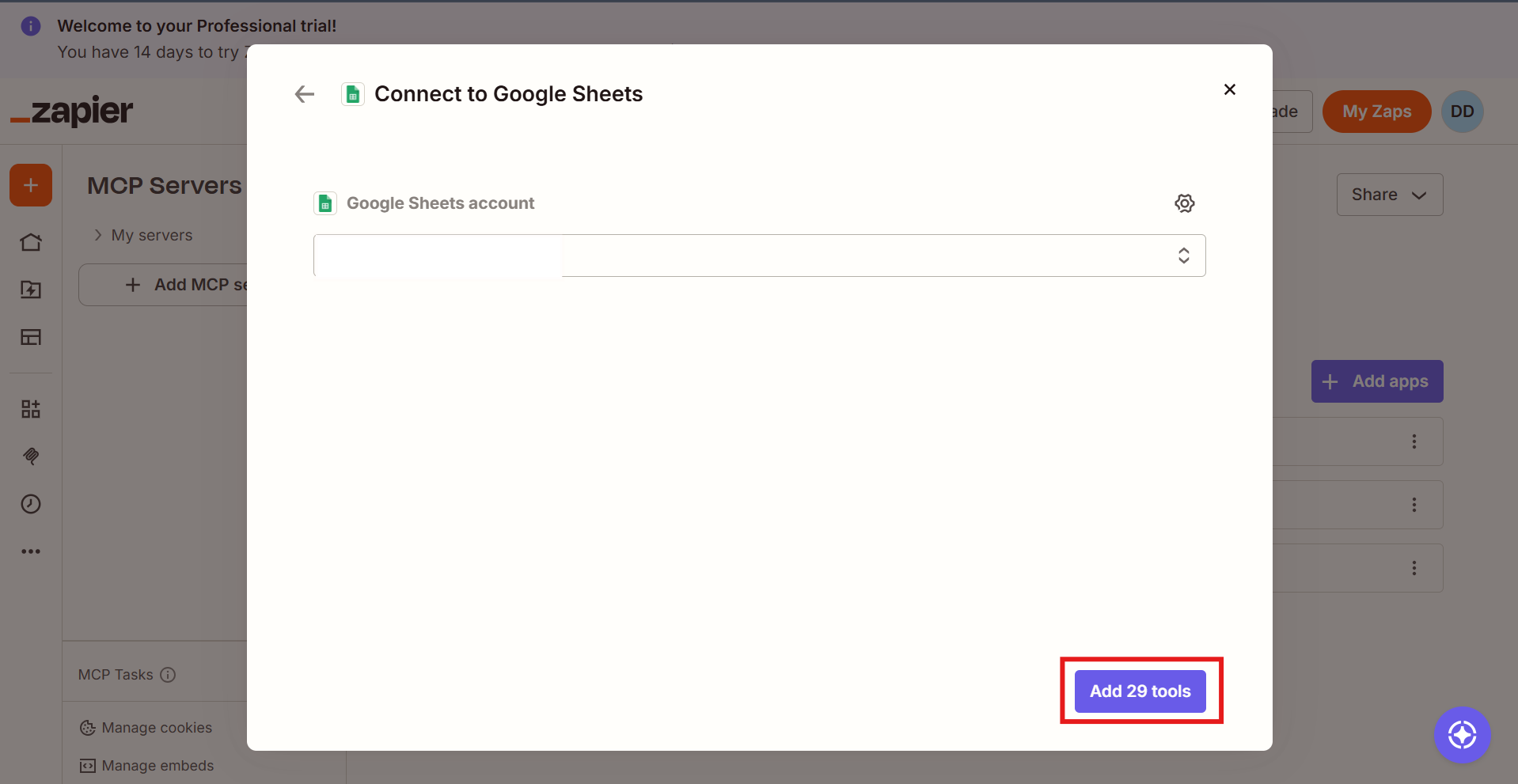
Connect your account:
- If prompted, you’ll see the “Connect to [App Name]” screen
- If you have an existing account: select it from the dropdown
- If you need a new account: click “Connect new account”
- Complete the OAuth authorization process and click “Connect” to connect your account
- You can also “Manage accounts” to view all connected accounts
Add the tools:
- Quick setup: click “Add all [App] tools”
- Custom setup: select individual actions
- Tools are added automatically to your server
On the server configuration page:
Step 2: connect server
- Click on Connect.
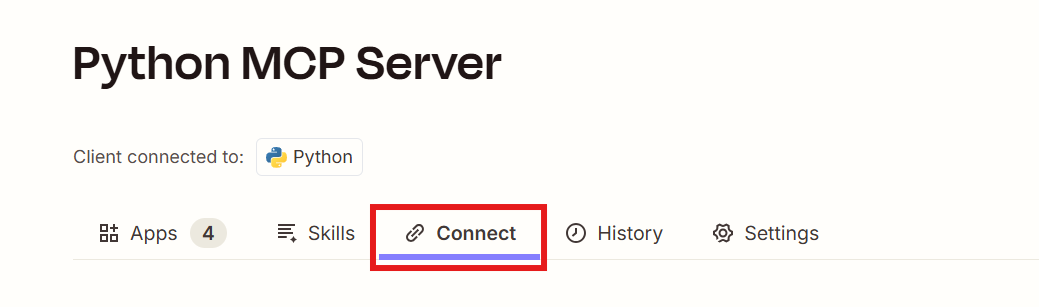
- Open your MCP server's “Python Client” section, under “Step 1: Get Your API Key.”
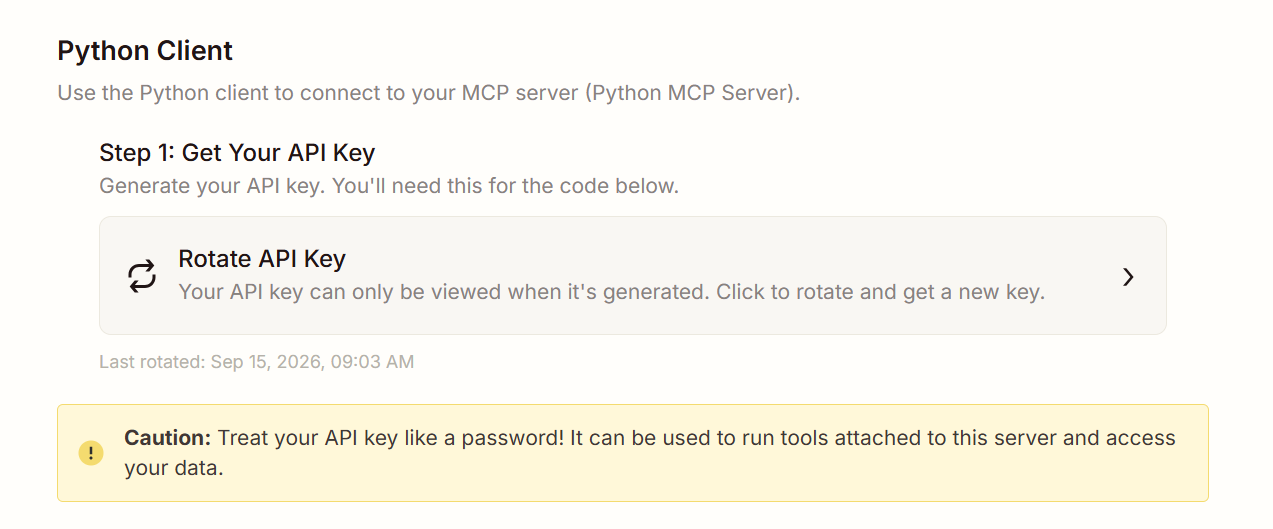
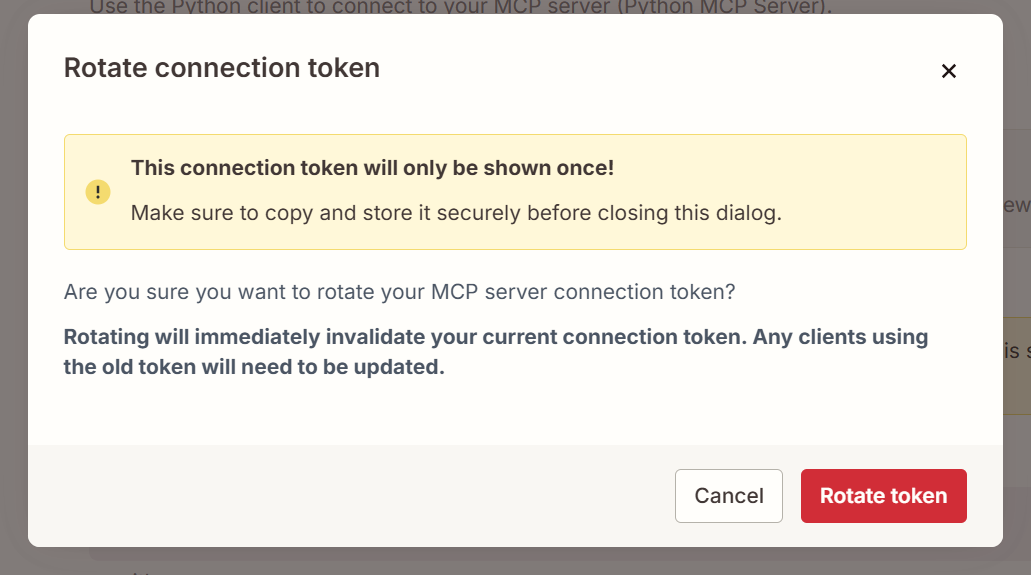
- Click “Rotate API Key” to generate your token. Note: rotating immediately invalidates any existing token, so clients already using an old one will need to be updated.
- Confirm the rotation in the “Rotate connection token” dialog. Rotating replaces your current token for good, so only confirm once you're ready to use the new one.
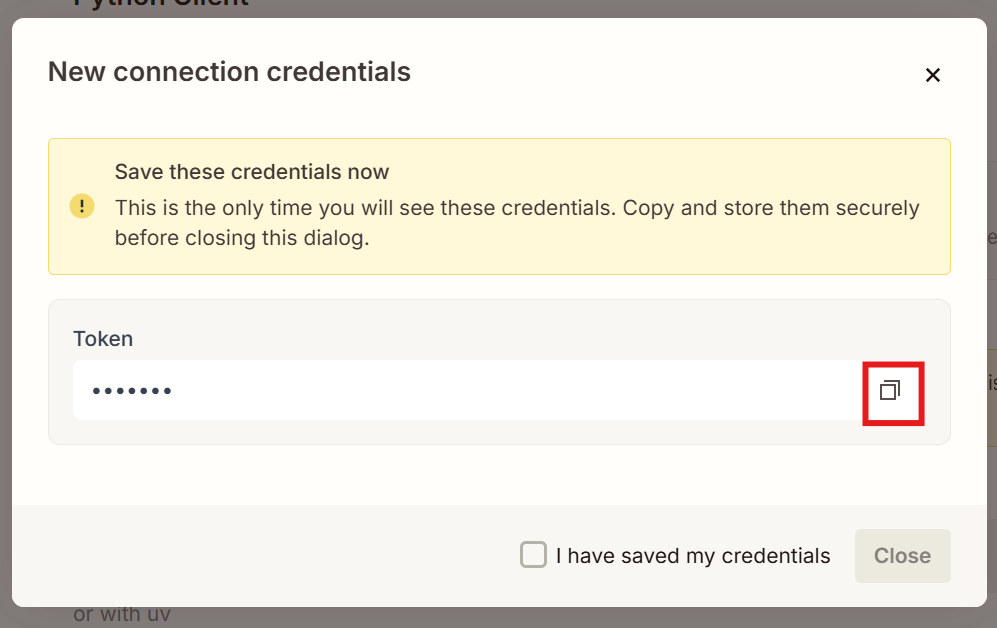
- Copy your token from the “New connection credentials” dialog using the copy icon, check “I have saved my credentials,” and close the window. This token is shown only once.
-
Copy your token first, then get your server URL– the URL is unique to your token and is only shown/valid after the token exists:
https://mcp.zapier.com/api/v1/connect?token=
- Make sure you have both the token and the full server URL before moving on.
- Keep your key secure – don't share it publicly.
Recommended starter tools
For general-purpose MCP setups, the following categories are commonly useful:
Communication
- Gmail: send email, find email
- Slack: send channel message
Productivity and task management
- Google Sheets: create row, lookup rows
- Google Calendar: create event, find event
- Notion: create page, update page
- Todoist: create task, find task
- Asana: create task, update task
You can always add or remove tools later as your use cases evolve.
What comes next
At this point, your Zapier MCP server is fully configured and ready for integration. You now have a running MCP server backed by Zapier, an authenticated server URL with its corresponding API key, and a set of real-world tools exposed through MCP that can be programmatically discovered and invoked by compatible clients.
The next steps move from setup to usage: connecting an MCP client, testing basic tool calls, and designing workflows where an AI system can reason about when and how to invoke these actions. With this foundation in place, Zapier becomes a powerful execution layer for AI-driven systems—allowing agents to move from reasoning to action without tight coupling to individual application APIs.